


What Google Search Console Does and Why It Matters
Google Search Console is a free Google tool that gives site owners a direct line into how Google crawls, indexes, and ranks their pages. The Performance report shows clicks, impressions, average click-through rate, and average position in Google Search. Other reports show which pages are indexed, whether structured data is valid, and whether pages meet Core Web Vitals thresholds. Used regularly, it surfaces problems long before those problems show up as a traffic drop.
Setting Up Google Search Console: Domain vs. URL Prefix Property
To get started, sign in at Search Console with a Google account and add a property, which is the website to monitor. Two property types are available, and the choice shapes what data is collected.
Add a domain property for the broadest view
A domain property covers every protocol, subdomain, and path under the root domain. Verification happens through DNS, which confirms ownership at the domain level.
The setup flow:
- In property setup, choose the Domain option and enter the root domain without http, https, or www. For example, enter
yoursite.com. - Copy the TXT record Google provides.
- Open the DNS settings at the domain registrar. In GoDaddy, this means clicking the nine dots next to My Products in the navigation bar and selecting Domains, then opening Edit DNS on the relevant domain.
- Add a new TXT record using the values supplied by Google: Type
TXT, Host/Name@, Value[Paste the TXT record from GSC], TTLDefault or 1 hour. Click Save. - Return to GSC and click Verify.
DNS changes can take anywhere from a few minutes to up to 48 hours to propagate. If verification fails at first, wait at least an hour and retry from the GSC dashboard.
Add a URL prefix property to isolate a section
A URL prefix property tracks a specific URL path, such as a blog subfolder like https://www.yoursite.com/blog/. It is the right choice when only a section of the site needs monitoring.
Choose the URL prefix option, enter the full URL including protocol and path, and pick a verification method. Google supports HTML file upload (the recommended method), HTML tag, Google Analytics, Google Tag Manager, or the domain name provider. With the HTML file method, download the verification file and upload it to the root directory that matches the URL prefix, then click Verify in GSC. If verification does not complete immediately, GSC will retry automatically.
Owners, Users, and Permissions
GSC access is split between Owners and Users. Owners have full control: they can view all data, configure settings, run every tool, and manage other users. There are two Owner types with the same permissions: a Verified Owner (the person who completed verification) and a Delegated Owner (added by a Verified Owner).
Users can view data but have more limited actions. The available User roles are:
- Full user: Can view all data and take certain actions.
- Restricted user: Can view most data but is otherwise limited.
- Associate: Cannot access GSC directly but can perform specific tasks depending on the association.
To add a user, go to Settings, then Users and permissions, click Add User, enter the email address, choose an access level, and click Add.
How to Add a Sitemap to Google Search Console
A sitemap is a file listing the pages that should appear in search results, and submitting it helps Google crawl and index the site more efficiently. To submit a sitemap, go to Sitemaps in GSC, enter the XML sitemap URL, and click Submit. Once Google processes the file, GSC displays a status message indicating whether the sitemap was successful or contains errors.
After submission, it pays to run a crawl-based audit with a dedicated SEO checker such as Semrush Site Audit. Open the Issues tab, search for “sitemap,” and resolve any errors or warnings that appear before they interfere with indexing.
Reading the Performance Report to Improve Visibility
The Performance report shows how a site appears in Google’s web search results and how users interact with those results. The Performance report does not currently break out metrics for AI Overviews or AI Mode separately. Google has launched a separate Search Generative AI Performance report for select users in beta before a wider rollout, which surfaces metrics specific to Google’s generative AI features.
Access the report by clicking Search results in the left-hand navigation. The chart at the top of the report tracks four metrics:
- Total clicks: How many times users clicked search results.
- Total impressions: How often results were displayed to users.
- Average click-through rate (CTR): The percentage of impressions that resulted in a click.
- Average position: The average position in search results.
A table below the chart breaks down performance by queries, pages, countries, and devices, and trends can be reviewed over time to spot visibility issues.
What to look for in the Performance report
When analyzing the data, three patterns deserve attention:
- Low CTR: Pages with strong rankings but low click-through rates often benefit from clearer title tags and meta descriptions. CTR can also be lower where AI Overviews appear in the results.
- Missing keywords: If queries important to the business are absent from the report, opportunities to capture additional search visibility are being missed.
- High positions with low impressions or clicks: This can point to an AI Overview sitting above the result that the page is not appearing in.
If a site appears in Google Discover or Google News, separate reports for those surfaces appear within the Performance section.
Finding striking-distance keywords with GSC and Semrush
Striking-distance keywords are queries that already rank between roughly positions 4 and 15, where a small push can move a page onto page one. In the Performance report’s queries table, filter by average position and sort for the queries closest to the top. Those are the fastest wins because the work starts from a page that already ranks.
Before investing further, check each shortlisted keyword’s difficulty and intent in Semrush’s Keyword Overview to confirm the push is worth it. A keyword sitting at position eight with high difficulty and clear commercial intent is worth a dedicated content push. One with low search volume or unclear intent probably is not. For keywords worth pursuing, the tactics that most reliably move a striking-distance page to page one are:
- Expand thin sections.
- Add subtopics that competitors already cover.
- Add internal links from the site’s higher-authority pages.
- Refresh any outdated on-page elements.
Inspect URLs to Check Indexing and Diagnose Issues
The URL Inspection tool shows whether a specific page is indexed by Google and diagnoses issues that may prevent it from appearing in search results. Access it by clicking URL inspection in the left-hand navigation, or paste a URL directly into the search bar at the top of any GSC page, then press enter.
The tool displays key information about the page:
- Index status: Whether Google has indexed the page.
- Last crawl date: When Google last crawled the URL.
- Structured data: Whether structured data is present and error-free.
To test a live version of a page and see how Googlebot views it, click Test Live URL in the top-right corner. From the results page, click View Tested Page Screenshot to see how Google renders the page. For new pages or significant updates, paste the full URL into the inspect search box and click Request Indexing to prompt Google to recrawl sooner. Indexing is not guaranteed.
Check Indexed Pages to Spot Coverage Problems
The Page indexing report shows which pages on a site Google has and has not indexed, along with the reasons pages were excluded. Pages must be indexed to appear in search results, so any drop in the indexed page count is worth investigating.
Find the report under Indexing, then Pages in the left-hand navigation. The report separates URLs into indexed and non-indexed buckets. A sudden drop in indexed pages is a signal that something needs attention. Scroll down to review the reasons pages were not indexed, such as 404 (Not found) errors. Click any entry in the Reason column to see the affected URLs and a description of the issue. At the top of the affected-URL list, an option to get guidance on how to fix the problem is available. After addressing the issues, click Validate Fix to notify Google and request re-indexing.
Check Whether Google Can Read Sitemaps
The Sitemaps report alerts site owners to blockers that may prevent Google from accessing content and shows how many pages Google discovers from each submitted sitemap. Access the report by selecting Sitemaps from the left-hand sidebar. For each submitted sitemap, the report includes the URL, Type (format), Submitted date, Last read date, Status, Discovered pages, and Discovered videos.
The Status column is the key indicator. Success means Google processed the sitemap without issues and can use the file to discover the listed URLs. Discovery is not the same as indexing: pages can still be excluded for the reasons covered in the Page indexing report.
Unsuccessful statuses and how to handle them:
- Has errors: Google detected issues in the sitemap. Review the listed errors and follow Google’s guidance to correct them.
- Couldn’t fetch: Google was unable to access the sitemap. Use the URL Inspection tool to run a live test to investigate.
Click a sitemap entry to open a detailed report, then select See page indexing to confirm whether all pages in the sitemap are actually indexed.
Check Whether Pages Meet Core Web Vitals
Core Web Vitals are Google’s performance and usability benchmarks, and they are also ranking factors. Hitting the thresholds can support better visibility in the SERPs. Google evaluates pages using three metrics:
- Largest Contentful Paint (LCP): How quickly the main content loads.
- Interaction to Next Paint (INP): How responsive the page is to user interactions.
- Cumulative Layout Shift (CLS): How stable the layout is as the page loads.
FAQ
What is Google Search Console?
Google Search Console is a free Google tool that helps site owners monitor search performance and technical SEO health. It reports on metrics like position in search results, clicks, and Core Web Vitals, and it provides tools to diagnose problems and improve how a site appears in Google Search.
Do I need Google Search Console to rank in Google Search?
No. Sites can appear in Google Search without GSC. However, without it there is no direct visibility into why a page stopped ranking, why a URL is not being indexed, or whether a structured data error is quietly costing rich results.
How do I add a sitemap to Google Search Console?
Go to Sitemaps in GSC, enter the XML sitemap URL, and click Submit. Once Google processes the sitemap, GSC shows whether the submission was successful or contains errors.
Related coverage
- How to Read Google Search Console’s AI Performance Reports
- Google Business Profile Optimization: A Complete Guide to Driving Calls and Visits
- Google’s AI Search Guide Is a Warning About Generic Content, Here’s What Actually Matters
SEOScanPRO
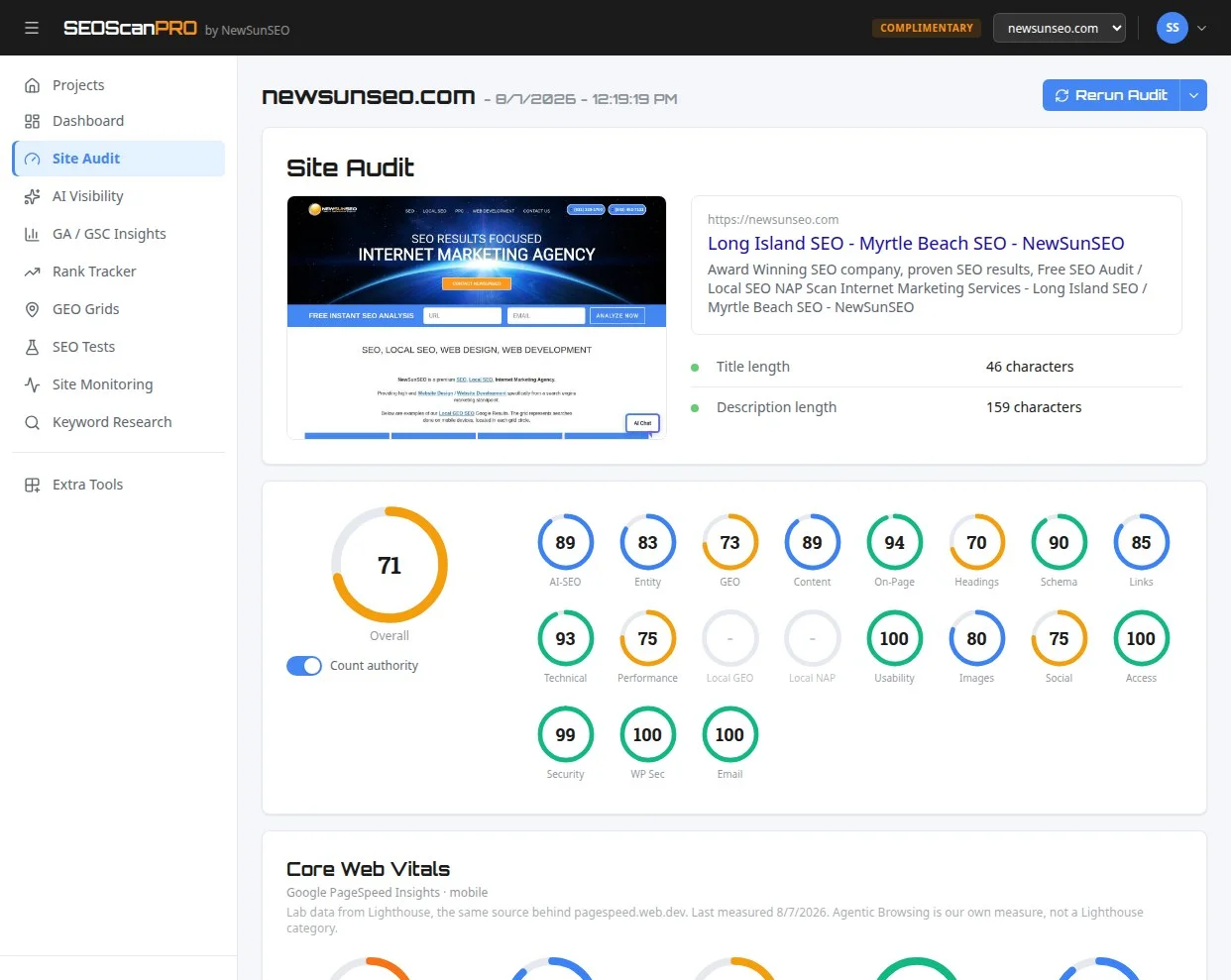
SEOScanPRO’s site audit tool runs a full technical audit of a site and shows the measured result behind every check. Open the site audit tool.
Want help with this in Myrtle Beach or Long Island? Talk to us.
NewSunSEO
Grow in Google and AI Search
AI-SEO, local search, paid ads and websites from one team, with offices on Long Island and in Myrtle Beach.
- AI-SEO
- Local AI-SEO
- AI Consulting
- PPC
- Web Design
- Web Development
- Long Island Office(631) 320-1700
- Myrtle Beach Office(843) 492-7131
Request a Free Proposal
Tell us about your business and where you want to grow.
We will reply by email to talk through your goals and what a proposal would include.
We use your details only to reply to you and send what you asked for. See our Privacy Policy.