



An AI SEO agent is a partly or fully automatic workflow built into an AI tool that performs a defined SEO task, such as keyword research, topic clustering, or content brief creation. With clear inputs, verified data sources, and a documented human process, the agent can deliver consistent results while keeping a person in the loop for the high-judgment steps like editing and publishing. This guide walks through a concrete build: an agent that takes a seed keyword, checks it against Google Search Console data, runs keyword research through the Semrush model context protocol (MCP), groups the results into topic clusters, and produces a content brief for the topic the user chooses to target.
What is an AI SEO agent?
An AI SEO agent is a workflow you set up inside an AI tool to carry out a specific SEO process, with or without human approval. Agents do not need to be fully autonomous. In practice, results tend to be better and more consistent when human review is built into the steps where mistakes are costly. If an agent surfaces internal linking opportunities, for example, a person should still place those links on the site. Even when an agent is set up well, AI tools can still produce errors, so the right amount of oversight depends on the risk of the task.
What can AI SEO agents do?
SEO agents can handle repeatable SEO tasks.
- Keyword research
- Competitor analysis
- Link building outreach
- Keyword clustering
- Content decay detection
- Identifying content refresh opportunities
- Technical audits
- Internal linking at scale
- Performance reporting
Most of these tasks need data from outside the AI tool, which is usually connected through an application programming interface (API) or a model context protocol (MCP). MCP is a way for AI tools to communicate with data providers like Semrush. All Semrush SEO and SEO + AI subscriptions include 50,000 MCP API units per month, and connecting the Semrush MCP gives an agent access to the keyword and backlink databases.
When is an agent the wrong tool?
An SEO agent is usually the wrong choice in three situations. A single prompt is faster and cheaper for one-off tasks. Workflows that depend on editorial judgment or brand risk need so much human oversight that the agent stops paying for itself. Workflows that change every time they run also lose value, because constant changes to the agent’s instructions cancel out the benefit of setting it up in the first place.
How to build an AI SEO agent: keyword research to content brief
The steps below show how to build one specific agent.
Step 1: Pick one clearly defined workflow
Choose one repeatable SEO task with clear inputs, clear outputs, and easy-to-validate success metrics. The first build should not be the most complex job on the team, since too many failure points turn setup into a long debugging exercise and burn API units on every retry. The example agent in this guide does three things in sequence: it takes a seed keyword, checks the seed against existing Google Search Console (GSC) data to find pages worth optimizing, then uses the Semrush MCP to run keyword research and group results into topic clusters, and finally produces a content brief for the topic the user selects. Success is measured by the quality of the content brief it outputs.
Step 2: Document the existing human process
Write down how the task is already done by an SEO professional so the agent’s behavior can be aligned with the real workflow. The documentation should list the data sources used, the rules and filters applied, and the exceptions accounted for. This document becomes the agent’s operating instructions later.
Step 3: Choose the inputs and outputs
Define what the user gives the agent and what the agent gives back at each stage. The example agent has three stages. In the one-time setup stage, the user uploads a business context file, GSC data, and a list of existing URLs, and the agent returns a CSV of clustered queries from GSC that will be reused on every run. In the keyword research stage, the user supplies a seed keyword or topic, and the agent returns a CSV of topics clustered around that input. In the content brief stage, the user picks a topic from the previous CSV, and the agent returns a content brief. It also helps to specify the file types for each side, such as DOCX, markdown, PDF, or Google Doc if Google Drive is connected.
Step 4: Connect verified data sources
Connect data sources the agent can rely on, so it works from facts rather than from memory. Common sources include the Semrush API or MCP, Google Search Console, Google Analytics, the content management system, and any hand-built lists of URLs or target keywords. Before connecting any source, confirm the data is allowed to be sent to the AI tool, since AI platforms may use inputs for training.
For the example agent, the Semrush MCP is connected so the agent can pull keyword data from Semrush. The exact menu path varies by tool. In Claude, a connector is added from any chat window by selecting the plus icon, then Connectors, then Add connector, then Browse connectors, then searching for Semrush, and following the sign-in flow. In ChatGPT, the same connection sits in the Plugins area. Google Search Console data is uploaded as a CSV once at the start and refreshed monthly, and a list of the site’s URLs is uploaded so the agent can suggest internal linking ideas inside the brief.
Step 5: Convert the process document into agent instructions
Paste the documented human process into the AI tool and ask the tool to turn it into a set of agent instructions. Provide the process document, a summary of the expected inputs and outputs, and a note about which connected tools the agent should use and when, to limit token and API unit spend. Ask the tool if anything is missing before finalizing. The first pass is rarely perfect, so some back and forth, and testing with different models, is normal. The finalized output is uploaded as a skill file in the next step. Optional integrations with communication and project management tools like Monday.com or Slack let the agent deliver reports or open tasks automatically, but high-impact actions such as publishing, redirects, or code deployments should stay behind human approval.
Step 6: Add the skill to the AI platform
Add the instructions as a skill file so the workflow is callable from inside the platform whenever it is needed. In Claude, the path is Customize in the left-hand sidebar, then Add, then Create a skill. The skill name should use only lowercase letters, numbers, and hyphens. A description is added, the agent instructions go into the free text box, and Create saves the skill.
Step 7: Add the relevant files to the skill
Attach a business context file so the agent understands what the business sells, who it sells to, who the main competitors are, and which pages on the site matter most, such as best-selling products or highest-traffic posts. Any rules or filters the AI should respect also belong in this file. For the example agent, this context is what lets the brief favor keywords tied to upcoming product launches. The file is added inside the skill editor through the Add file button, given a name, and populated with the context in the free text area before Create is clicked.
Step 8: Test and tweak the workflow
Test the agent with dummy data and watch the reasoning it gives for its decisions. Require the agent to show its evidence on every run, so a human reviewer can check the source of any keyword or heading suggestion. For the example agent, that means the agent cites the source for each keyword it includes, whether the source is a competitor heading or a Semrush metric. Running the agent against several different seed keywords also confirms the output holds up across listicles, comprehensive guides, and other formats.
Step 9: Deploy, monitor, and improve
Once the agent passes several tests, it is ready to use. A short Loom video or a Google Doc with screenshots helps when other people on the team need to follow the same steps or when a stakeholder has to approve the workflow. The skill is edited by opening it, selecting the three-dot menu, choosing Edit, making the change, and rerunning the test stage. Access should be controlled, since many users running many models can drain Claude tokens and Semrush API units quickly.
FAQ
What is an AI SEO agent?
An AI SEO agent is a partly or fully automatic workflow built into an AI tool to carry out a specific SEO task such as keyword research, topic clustering, or content brief creation, often with human approval at the high-judgment steps.
What can an AI SEO agent do?
It can take on keyword research, keyword clustering, competitor analysis, link building outreach, content decay detection, content refresh suggestions, technical audits, internal linking at scale, and performance reporting, usually by connecting external data sources through an API or MCP.
How is the Semrush MCP used in an AI SEO agent?
The Semrush MCP is connected to the AI platform so the agent can pull keyword and backlink data from Semrush’s database. All Semrush SEO and SEO + AI subscriptions include 50,000 MCP API units per month for that connection.
Related coverage
- Why Local SEO Matters for Small Businesses and How to Build a Winning Strategy in 2026
- How to Build a Content Marketing Strategy That Actually Works for Small Businesses in 2026
- How Content Strategy Drives Local SEO for Small Businesses
SEOScanPRO
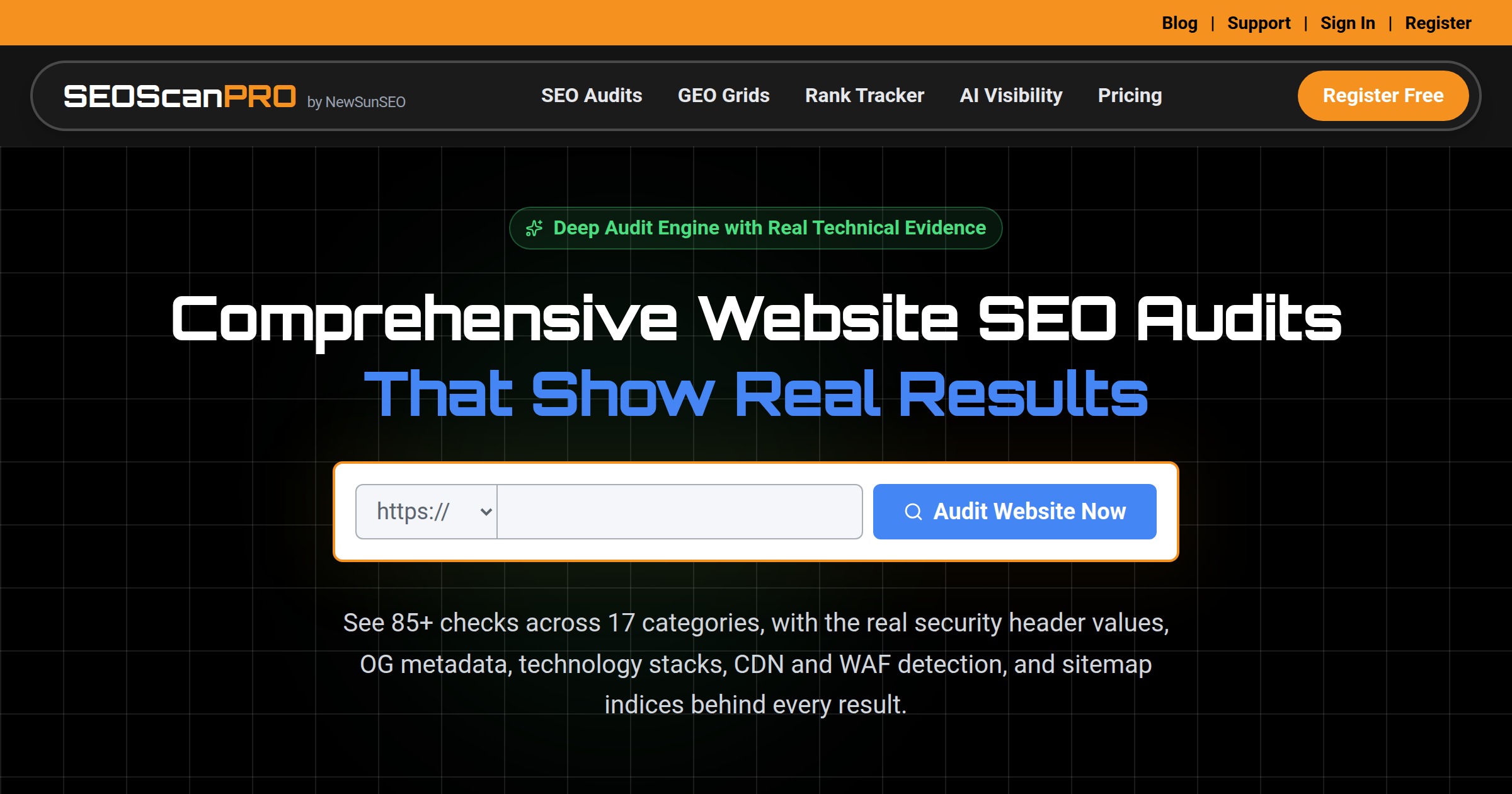
SEOScanPRO’s Search Console analytics view runs a full technical audit of a site and shows the measured result behind every check. Open the Search Console analytics view.
Want help with this in Myrtle Beach or Long Island? Talk to us.
NewSunSEO
Grow in Google and AI Search
AI-SEO, local search, paid ads and websites from one team, with offices on Long Island and in Myrtle Beach.
- AI-SEO
- Local AI-SEO
- AI Consulting
- PPC
- Web Design
- Web Development
- Long Island Office(631) 320-1700
- Myrtle Beach Office(843) 492-7131
Request a Free Proposal
Tell us about your business and where you want to grow.
We will reply by email to talk through your goals and what a proposal would include.
We use your details only to reply to you and send what you asked for. See our Privacy Policy.